
How to Migrate Your Data When Switching Apps
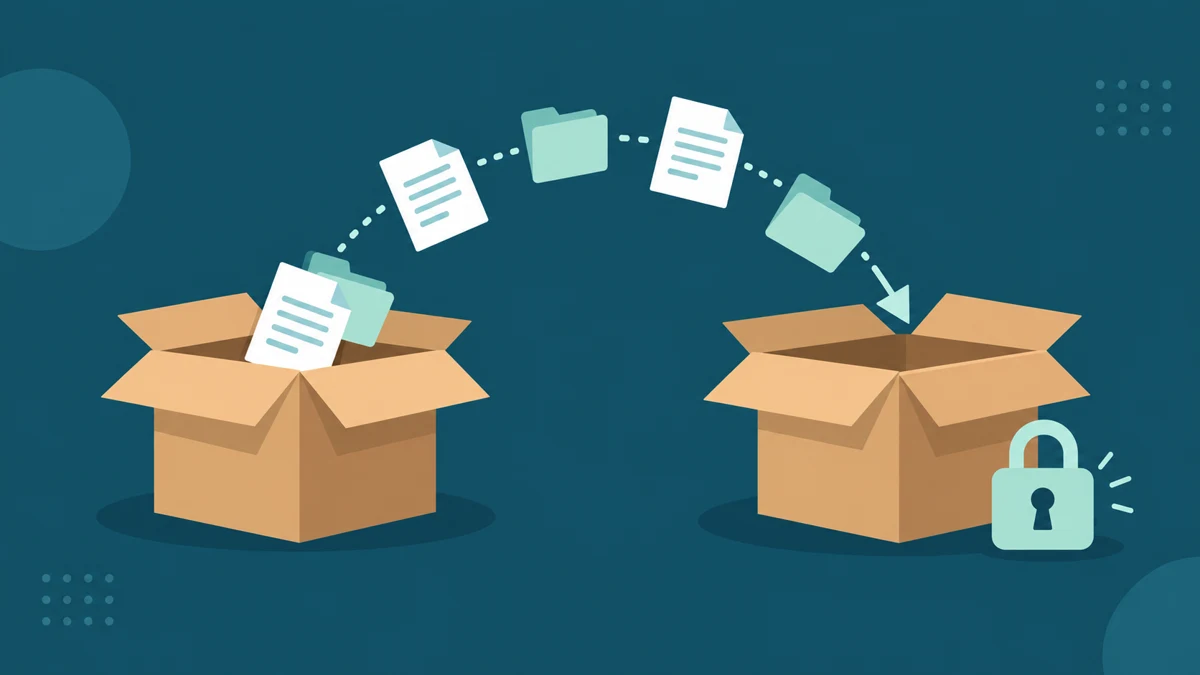
Switching to a new app is exciting right up until you realize your old app holds three years of your work. Tasks, notes, boards, documents and logins all live somewhere, and every app has its own idea about how much of that you are allowed to take with you. The good news is that a safe migration follows the same five steps no matter which apps are involved, and every official export path in this guide was verified on the vendor’s own help pages today. Follow the workflow below and you will move your data without losing anything, without paying for two subscriptions longer than necessary, and without the classic mistake of canceling the old app before the new one proves it can hold your data.
Why app migrations go wrong
Most failed migrations share one root cause: people treat switching as a single moment instead of a process. They cancel the old subscription, download whatever export button they can find, and only then discover the file format does not fit the new app. By that point the old account may be closed, downgraded or already deleted.
The second cause is format mismatch. An export is only useful if something on the other side can import it, and that is far from guaranteed. Trello’s own help page, for example, states plainly that it is not currently possible to import its JSON or CSV exports to recreate a board. So a Trello export is an archive, not a moving van. Knowing that before you switch changes your whole plan, and if you are still deciding between tools, our task manager vs to-do list vs project management tool comparison helps you pick a destination that accepts the data you have.
The third cause is trust: assuming the export actually contains everything. Attachments, comments, version history and shared permissions are often handled separately or skipped entirely. The only safe attitude is to verify the export file before you rely on it, which the workflow below builds in as a mandatory step. For the broader framework on evaluating software before committing, see the guide to choosing productivity software.
The golden rule: export before you cancel
Every other rule in this guide hangs on this one. Keep the old subscription active until your data is verified inside the new app, working and complete. Yes, that means paying for an overlap of a few weeks, and yes, it is worth it, because the overlap is your insurance policy against a corrupted export or a missing import feature.
Downgrading instead of canceling is often the smarter middle step. Many apps keep your data readable on a free tier even after you stop paying, which buys you unlimited time to finish the move. Check the old app’s downgrade policy before you do anything else, because a free-tier fallback turns a stressful deadline into a calm weekend project.
There is one more reason to export first that nobody mentions until it is too late: exports can fail. Large archives time out, email delivery links expire, and some tools queue your export for hours or days before it is ready. Google’s own Takeout help page warns that depending on the amount of data, the archive can take from a few minutes to a few days to prepare. If you cancel on Friday expecting an instant download, you may spend the weekend locked out of your own files.
Export formats you will actually meet
Four formats cover almost everything you will encounter. CSV files open in any spreadsheet app and suit lists like tasks and contacts. JSON files carry structured data faithfully but need the destination app or a conversion tool to become useful. Markdown and HTML preserve documents and notes with their formatting. Zip archives bundle all of the above together, sometimes with your files and images in folders.
| App | Export format | Re-import into same app | Notes from the official docs |
|---|---|---|---|
| Google account (Takeout) | Zip or tgz archives | Varies by product | Choose from dozens of products, delivery by email link or straight to Drive, Dropbox, OneDrive or Box; large archives can take from minutes to days |
| Notion | Markdown and CSV, HTML, or PDF | Yes, via import | Databases export as CSV with Markdown subpages; HTML keeps page structure for archiving |
| Todoist | CSV per project | Yes, CSV import supported | Official CSV template defines task, section and note rows; backups are also downloadable |
| Trello | JSON for everyone, CSV on Premium | No | Export is an archive only; JSON includes the 1,000 most recent board actions including comments |
Google Takeout is the biggest of these doors, and here is its product selection page as captured today:

Notice how each product shows its export format before you download anything. That single habit, checking the format chip first, saves you from downloading a multi-gigabyte archive in a format your destination cannot read.
When you have a choice between formats, pick for the destination, not the archive. CSV wins when the new app imports spreadsheets or when you want to clean the data by hand first. Markdown wins for notes and documents because nearly every modern notes app reads it. JSON is the faithful-but-fussy option: it preserves everything, yet only helps if the destination, or a converter, understands that specific app’s flavor of JSON. A Trello JSON and a generic task list are cousins, not twins, so expect manual cleanup when you cross ecosystems.
Also, do not confuse an export with a backup. An export is built for leaving, while a backup is built for restoring, and Todoist’s help pages treat them as separate features for exactly that reason. Before a big migration, take both: the export for the move, and the native backup as the frozen copy you keep forever.
The five-step migration workflow
Step one is inventory. List what actually lives in the old app: tasks, notes, files, comments, shared items and integrations. This list decides what a successful migration even means, and it usually reveals data you forgot existed, like archived projects or shared boards owned by someone else.
Step two is the export itself. Use the official path from the vendor’s help pages, and pick the most portable format available, which is usually CSV for lists and Markdown or HTML for documents. Save the files in a dedicated folder with the date in the name, because you may need to repeat the export if the migration drags on.
Step three is verification before import. Open the exported files and actually read them: does the CSV have all your rows, do the Markdown files show your formatting, are the attachments in the zip? Five minutes of reading beats discovering a gap after the old account is gone.
Step four is a test import with a small sample. Import one project or one notebook into the new app first, then check dates, assignees, tags and attachments field by field. Only after the sample survives inspection do you run the full import and spot-check a random dozen items.
Step five is the cleanup, and it waits until everything above is done. Cancel or downgrade the old subscription, remove its connected apps, and archive the export files somewhere safe instead of deleting them. If you are trimming several tools at once, our walkthrough on auditing software subscriptions to cut costs pairs well with this step, and the free vs paid software guide helps you decide which tier your new app really needs.
Special case: passwords and sensitive data
Password exports deserve their own warning because the stakes are different. Bitwarden’s documentation is blunt about it: standard exports are plaintext .json or .csv files, and unless you use the encrypted export option, you should not store or send the file over insecure channels like email, and you should delete it immediately after use. Anyone who gets that file gets every login you own.
The safe routine takes one extra minute. Export directly on the device where you will import, choose the encrypted export if the tool offers one, import immediately, verify a handful of logins in the new manager, and then delete the export file and empty the trash. Bitwarden also notes that importing does not check for duplicates, so import once, and if you must retry, clean up the half-imported items first instead of layering a second copy on top.
The same discipline applies to any CSV containing customer data or financial records, not just passwords. A task list is embarrassing to leak; a customer list with emails and order history is a breach. Treat every plaintext export as something that lives for minutes, not days, and store long-term archives only in encrypted form.
When a migration is not worth doing
Sometimes the honest answer is to leave the data behind. Old archives you have not opened in a year, finished projects and dead client workspaces often cost more to move than they are worth. A read-only export stored in a folder preserves them for reference without polluting your new app.
Consider also the manual rebuild for small, curated sets. Moving your twenty active tasks by hand takes ten minutes and doubles as a cleanup, while automating the transfer of five hundred dead ones imports five hundred pieces of clutter. Migration is a rare chance to start the new app lean, so take it, and resist the urge to drag everything with you out of pure habit.
Finally, some data simply cannot move because the format does not exist. App-specific features like Trello automations, Notion formulas or Todoist filters have no portable equivalent, so rebuilding them by hand in the new tool is part of the real cost of switching. Count that rebuilding time when you decide whether switching is worth it at all, because a cheaper app that takes you three weekends to recreate is not actually cheaper.
Quick answers
Can I migrate everything from one app to another automatically?
Rarely in full. Core data like tasks, notes and contacts usually exports cleanly, but comments, attachments, version history and sharing permissions often need manual handling or are lost. Always check what the export format of your specific app includes before you count on it.
What is the safest order to switch apps?
Export first, verify the files, test-import a small sample into the new app, run the full import, and only then cancel or downgrade the old subscription. Keeping the old account active until the new one proves itself is the single most important habit in the whole process.
Is a CSV or JSON export better?
CSV is better when you want to read, clean or restructure the data yourself in a spreadsheet, while JSON preserves complex structure like nested comments more faithfully. Choose based on what the destination app imports, not on which file looks nicer, since an unreadable perfect export helps nobody.
How long should I keep the old app after switching?
Keep it active until every item type has been spot-checked in the new app, typically two to four weeks for a personal setup. If the old app has a free tier, downgrade instead of deleting, and keep the dated export files as a permanent archive.
What should I do with export files containing passwords?
Treat them like the keys to your accounts, because they are. Never email them, never leave them in Downloads, and delete them immediately after a successful import, emptying the trash as well. Use an encrypted export format whenever your password manager offers one.
Sources
- Google Account Help: How to download your Google data – Takeout steps, delivery methods and archive formats, verified today; screenshot above captured from Google Takeout.
- Notion Help: Export your content – PDF, HTML and Markdown and CSV export options, verified today.
- Todoist Help: Import or export a project as a CSV file – CSV format, template and import steps, verified today.
- Trello Support: Export data from Trello – JSON and Premium CSV exports and the note that re-import is not possible, verified today.
- Bitwarden Help: Export Vault Data – plaintext and encrypted export options with the insecure-channel warning, verified today.




One Comment