SSL Certificates Explained: Why Your Site Needs HTTPS
Every browser shows a small padlock next to your address bar. Every visitor has learned to notice when it is missing. Behind that padlock sits an SSL certificate, and behind the certificate sits the difference between a site browsers trust and a site they warn people about. This guide explains what an SSL certificate does, why HTTPS matters for visitors and rankings, and how to get one free in about ten minutes. Everything below was verified on official documentation today, so there is no guesswork involved.
What an SSL certificate actually is
SSL stands for Secure Sockets Layer. The modern version of the protocol is technically called TLS, but everyone still says SSL out of habit, so this guide does too. The certificate itself is a small digital file that does two jobs at once. First, it proves your site is really your site, because a trusted certificate authority vouches for it. Second, it enables encryption between your visitor’s browser and your server.
That encryption matters every time someone types anything into your site. Passwords, contact forms, search terms and order details all travel across networks you do not control. Without HTTPS, that traffic is readable by anyone positioned to watch it, like someone sharing a cafe Wi-Fi network with your visitor. With HTTPS, the same traffic becomes gibberish to everyone except the browser and the server.
Think of the certificate as an ID card plus an envelope. The ID card says this server is genuinely your domain and not an impostor. The envelope keeps the contents private while they travel. Browsers check both before they show the padlock.
Why browsers punish sites without it
Browsers no longer treat HTTPS as a bonus feature. Chrome’s help pages explain the security symbols shown next to the address: a secure indicator for HTTPS sites, an info or not-secure state for plain HTTP, and a not-secure or dangerous warning for the worst cases. Chrome also offers an “Always use secure connections” mode that warns before loading any site without HTTPS.
Now put yourself in your visitor’s shoes. They click a link to your site, and the browser says the connection is not secure. Most people cannot tell “this site will steal your card” from “this site never got around to encryption”. They simply leave, and they rarely come back. For a new site trying to build trust, that warning is the most expensive thing you can show a stranger.
The good news: fixing it is one of the cheapest trust wins on the internet. That brings us to the search angle.
HTTPS and your Google rankings
Google made this official back in 2014. In a Search Central blog post from August that year, the company announced it had started using HTTPS as a ranking signal. Google described it as a very lightweight signal at the time. It affected fewer than 1% of global queries and carried less weight than high-quality content. The same post said Google might strengthen it over time to encourage every site to switch.
So be honest about what HTTPS does for rankings. It is not a magic boost that outranks better content. It is closer to a table stake: a small positive signal you get for free, plus the removal of a warning that scares away visitors your content worked hard to earn. Losing traffic to a missing padlock is a self-inflicted wound, and self-inflicted wounds are the easiest ones to fix.
If you are working through the other fundamentals of a fast, trustworthy site, our guide on speeding up WordPress covers the performance side of the same coin. Security and speed together form the baseline for every later optimization, and the complete web hosting guide maps the whole foundation.
The free option that changed everything
SSL certificates used to cost real money, which kept many small sites on plain HTTP for years. Let’s Encrypt ended that excuse. It is a nonprofit certificate authority with a stated mission to create a more secure and privacy-respecting web. Its own FAQ says plainly that it does not charge a fee for certificates, and any website can deploy HTTPS with it.
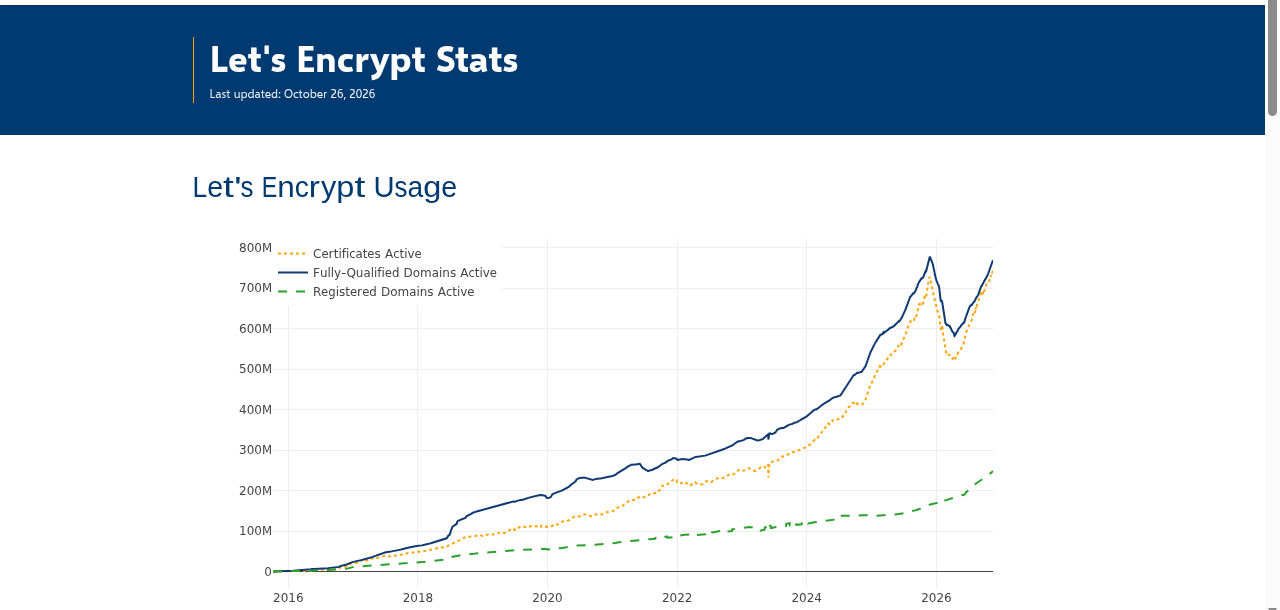
Two details are worth knowing. Let’s Encrypt certificates are valid for 90 days, and the organization recommends renewing every 60 days. That sounds annoying until you realize renewal is designed to run fully automatically. The FAQ also confirms your private key is generated and managed on your own server, never on theirs. In other words, the free option is not a stripped-down compromise. It uses the same encryption as the paid ones, which is one reason its adoption curve looks like this:
Free vs paid certificates, honestly
Paid certificates still exist, and for some sites they make sense. The differences are not about encryption strength, because the padlock protects the same way either way. The real differences sit in validation level, warranty and support.
| Type | Cost | Validation | Best for |
|---|---|---|---|
| Free (Let’s Encrypt or host-provided) | $0 | Domain validation: proves you control the domain | Blogs, portfolios, small business sites, most stores |
| Paid OV | Varies by vendor | Organization validation: checks the business behind the domain | Companies that want the business name on record |
| Paid EV | Highest tier | Extended validation with deeper vetting | Banks and large institutions with compliance needs |
For a personal blog or a small business site, the free domain-validated certificate covers everything your visitors need. Pay only when a specific requirement, like a corporate policy or a warranty clause, asks for more. Spending money to get a “stronger padlock” is a classic beginner overspend.
How to get HTTPS running today
Most good hosts now include free SSL out of the box, so check there first. Hostinger’s support documentation states that all Web, Cloud and Agency plans include free SSL certificates for every domain and subdomain, installed automatically when you add a domain. A manual install option exists too, and its Lifetime SSL feature works only for sites hosted with them. Other quality hosts offer something similar, often powered by Let’s Encrypt behind the scenes.
The practical path has three steps. First, open your hosting control panel, find the SSL or security section, and confirm a certificate is active for your domain. Second, force HTTPS so every visitor lands on the secure version, usually a single toggle or redirect setting. Third, visit your site and confirm the padlock appears without warnings on every page, including pages with images and forms.
If your current host charges extra for SSL, moving is often simpler than paying year after year. Our walkthrough on moving a website to a new host without downtime covers the migration step by step. The guide to choosing a web host lists the other things beginners overlook, SSL included. And if you are still comparing plans, the breakdown of shared, VPS and cloud hosting shows which plan types bundle free certificates by default.
Does SSL protect your site from hackers?
This is the most common misunderstanding, so let’s clear it up. SSL protects data while it travels between your visitor and your server. It does not protect your site itself from attacks. A hacked site can still serve malware over a perfectly valid HTTPS connection, complete with a shiny padlock.
Real site security is a stack. Updates close known holes, strong passwords stop account takeovers, backups limit the damage, and SSL secures the wire. You need all four. The good news is that SSL is the easiest layer to finish, and today is a fine day to finish it.
How to check your SSL is really working
A certificate sitting in your hosting panel is not the same as a working padlock. Run three quick checks after setup. First, load your homepage with https:// in front and confirm the browser shows the secure symbol. Second, load the http:// version and make sure it redirects to the secure one automatically. Third, open a few older posts and watch for mixed-content warnings, because old images often carry the last insecure links.
For a deeper look, free online SSL checkers will scan your certificate and report its expiry date, its issuing authority and any chain problems. Run one after every migration or host change. A two-minute check today is far cheaper than discovering an expired certificate through a screenshot from a confused customer.
Finally, put a recurring reminder in your calendar to glance at the padlock once a month. Automatic renewal is reliable, but automation fails quietly. The person who notices first should be you, not your visitors. Keep the contact email on your certificate account current too, because renewal failures usually announce themselves there first.
Mistakes that break the padlock
The most common problem after installing SSL is mixed content. Your pages load over HTTPS, but an old image, script or stylesheet still points to an HTTP address, so the browser shows a warning anyway. The fix is to update those internal links to HTTPS. In WordPress that usually means changing the site address setting and refreshing old content URLs.
The second classic is letting the certificate expire. A 90-day certificate with no auto-renewal turns into a giant red browser warning exactly when you forget about it. Whatever option you choose, turn on automatic renewal and test that it actually runs. Finally, remember that SSL protects the connection, not the site itself. You still need updates, strong passwords and backups, because encryption cannot save an unmaintained install.
Quick answers
Is an SSL certificate really necessary for a small blog?
Yes. Even without logins or payments, browsers mark plain HTTP sites as not secure, and Google has used HTTPS as a ranking signal since 2014. Free certificates remove every cost excuse, so there is no sensible reason to stay on HTTP.
How much does an SSL certificate cost?
Nothing, for most sites. Let’s Encrypt issues certificates for free as a nonprofit, and hosts like Hostinger include free SSL automatically with their plans. Paid certificates add organization validation and warranties that only specific businesses need.
What is the difference between SSL and TLS?
TLS is the modern successor of SSL, and every current certificate actually uses the TLS protocol. The industry kept the old name. When you read “SSL certificate”, it means a certificate that secures your site with TLS encryption.
Why does my site show “not secure” even with SSL installed?
The usual suspect is mixed content: some image, script or CSS file still loads over plain HTTP inside your HTTPS pages. Check your site address setting, update internal URLs to HTTPS, and force a redirect so visitors never reach the insecure version.
How long do SSL certificates last?
Let’s Encrypt certificates are valid for 90 days, with renewal recommended every 60 days, and the process is designed to run automatically. Host-provided certificates often renew themselves entirely. Whatever you use, verify auto-renewal works so an expiry warning never surprises you.
Sources
- Let’s Encrypt FAQ – free certificates, 90-day validity, 60-day renewal recommendation and private key handling, verified today.
- Google Search Central Blog: HTTPS as a ranking signal – the 2014 announcement, including the “lightweight signal, fewer than 1% of queries” framing.
- Google Chrome Help: Check a site’s connection security – the secure, not-secure and dangerous symbols, verified today.
- Hostinger Support: How to claim a free SSL – automatic free SSL on hosting plans, verified today.
- Let’s Encrypt Stats – usage growth chart shown above, page last updated October 26, 2026.