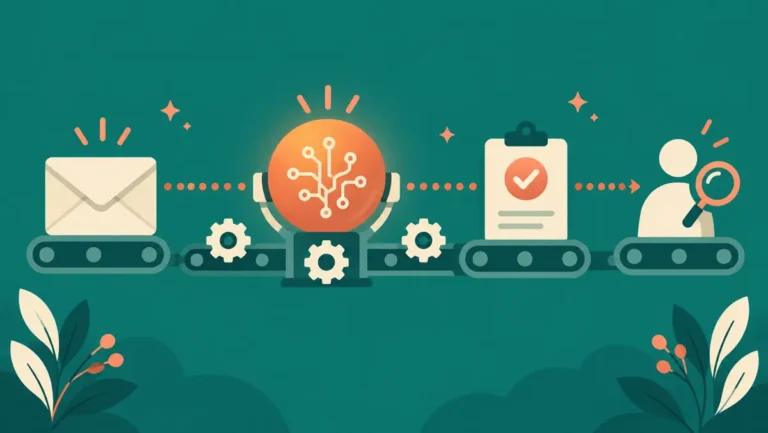
AI Automation for Beginners: How to Automate Repetitive Work Without Writing Code

You probably have a mental list of tasks you do every week that feel like copy and paste work. Sorting form responses into a spreadsheet. Rewriting the same follow-up email. Turning meeting notes into a task list. None of these are hard, but together they eat hours. This guide to AI automation for beginners is about getting those hours back. The whole series on reclaiming those hours lives in our complete guide to AI automation.
AI automation is the current answer to that problem, and you do not need to be a developer to use it. This guide explains what AI automation actually is, how it differs from older rule-based automation, which workflows are good first projects, and how to set one up without breaking anything. Where a claim comes from a specific source, you will find it in the Sources section at the end.
Key takeaways
- AI automation adds an interpretation step to the classic trigger-and-action workflow, and you do not need to code to start.
- Every workflow is three building blocks: a trigger, actions, and an optional AI step.
- Prototype on a hosted platform like Zapier; move to self-hosted n8n when volume, data sensitivity, or cost demands it.
- Build safely: use test data, keep the workflow off while you test, and watch the first real runs.
Table of contents
- What AI automation actually is
- The three building blocks of every workflow
- Five starter workflows that are genuinely useful
- Choosing a tool: hosted vs self-hosted
- How to build your first workflow safely
- Common mistakes to avoid
- What this does not do
- AI automation for beginners: quick answers to common questions
What AI automation actually is
Traditional automation follows fixed rules. A trigger fires, then the same steps run every time: when a form is submitted, add a row to a spreadsheet. Even conditional branches are rigid. If the budget field says over $20K, route to sales rep A. A budget of $22K always ends up in the same place, no matter what else the lead wrote.
AI automation adds a step that can interpret, not just execute. Zapier, one of the largest automation platforms, describes it this way: an AI step inside a workflow can read a free-text answer, weigh it against other signals, and produce a judgment in the moment, instead of following logic you wired in advance. In their example, a modest budget combined with an urgent, specific request can outrank a bigger budget from someone just browsing, because the model weighs the whole response rather than one field.
So a working definition: AI automation is a deterministic workflow with AI judgment inside it. The workflow part never improvises. The same trigger leads to the same steps every time. The AI handles the moments that need interpretation, like reading a support ticket, summarizing a document, or drafting a reply.
This distinction matters because it tells you what to automate first: processes that are already clear and repeatable, but contain one step that used to require a human to read, classify, or write something.
The three building blocks of every workflow
Almost every automation tool, hosted or self-hosted, uses the same mental model. Learn these three pieces once and every platform becomes easier.
1. Trigger
The event that starts the workflow. A new email arrives. A form is submitted. A schedule hits 8 AM. n8n’s own beginner tutorial, for example, starts with a schedule trigger that runs every morning and fetches weather data, a build their docs say takes about 15 minutes with no accounts, API keys, or coding experience.
2. Actions
The steps that run after the trigger. Create a spreadsheet row. Send a Slack message. Save a file. Actions are deterministic: they do exactly what you configured.
3. The AI step (optional but increasingly central)
Instead of a fixed action, the workflow sends data to an AI model with your instructions and uses the result. In Zapier this is called AI by Zapier, a built-in tool that lets you add AI action steps to workflows. You write a prompt, map in data from earlier steps, and choose a model tier. Zapier’s documentation describes three tiers: standard models for high-volume simple tasks, advanced models for more complex prompts and tool use, and premium models for complex analysis and multi-step reasoning. Several models are included for free, and you can also connect your own provider account.
A subtle but important design rule follows from this structure: keep the AI step narrow. One judgment per step. “Classify this email as sales, support, or spam” is a good AI step. “Handle my inbox” is not.
Five starter workflows that are genuinely useful
These are ordered from easiest to hardest. Each one is a real pattern supported by mainstream tools, not a demo trick.
1. Form response triage
Trigger: new form submission. AI step: read the free-text message and classify it (sales inquiry, support, spam, other) with a one-line reason. Action: route it to the right spreadsheet tab, folder, or Slack channel. This is the classic first AI workflow because the input is structured, the judgment is simple, and a mistake is cheap to fix.
2. Meeting notes to task list
Trigger: a new transcript file lands in a folder. AI step: extract decisions, action items, and owners into a fixed format. Action: create tasks in your task app and post a summary to your team channel. The AI step does the reading; the workflow does the filing.
3. Lead enrichment and scoring
Trigger: new lead in your CRM or form tool. AI step: read the lead’s message and company details, then score urgency and fit against criteria you wrote down. Action: assign the lead and draft a first reply for a human to approve. Zapier’s own documentation uses exactly this pattern to explain how AI steps differ from rules-only branching.
4. Scheduled research digest
Trigger: a weekly schedule. Actions: fetch new items from an RSS feed, a search API, or a set of pages. AI step: summarize and rank them against your interests. Action: email yourself a digest. This is the same shape as n8n’s first-workflow tutorial, with an AI step added.
5. Support ticket first draft
Trigger: new support email or ticket. AI step: draft a reply using your help docs as a knowledge source, and flag anything it is unsure about. Action: save the draft for a human to review and send. Note the last step. For anything customer-facing, human review before sending is the pattern that keeps this safe.
Choosing a tool: hosted vs self-hosted
You do not need to compare twenty platforms. For a first workflow, the real choice is between two models.
Hosted platforms (Zapier is the best-known example)
You build in a browser, connect apps through pre-built integrations, and pay a subscription. Zapier says it connects to more than 9,000 apps and offers AI-assisted building through its Copilot feature, plus troubleshooting help that explains errors in plain language. The trade-off: your data flows through their servers, and costs scale with usage. Zapier’s AI steps consume “tasks” at different rates depending on the model tier, so check their current pricing page before building something that runs thousands of times a day. Zapier’s pricing page (October 2026) lists the Professional plan starting at $19.99 per month and Team at $69 per month, and notes that AI model tier, code runtime, and connector type each affect how many tasks an action uses.
Self-hosted tools (n8n is the best-known example)
n8n is a fair-code licensed workflow automation tool that combines AI features with business process automation, according to its documentation. You can run it on your own machine or server. The docs describe a one-line setup script that installs n8n with Docker in a single step, with a built-in SQLite database, so you do not need to manage a separate database server to try it. Self-hosted n8n runs as the free Community edition without a license key. The trade-off: you are responsible for keeping it running, updated, and secured. n8n’s docs themselves recommend a production-grade database like Postgres for production use.
| Factor | Hosted platform (e.g. Zapier) | Self-hosted (e.g. n8n) |
|---|---|---|
| Setup | Build in a browser, pre-built app integrations | One-line Docker setup per its docs; you run the machine |
| Where your data flows | Through the vendor’s servers and their AI providers | Stays on your infrastructure, except whatever an AI step sends to the AI provider you configure |
| Cost shape | Subscription that scales with usage; verify current pricing on the live pricing page | Free Community edition per its docs, plus your own hosting costs |
| Maintenance | Handled by the vendor | Your job: updates, security, and a production-grade database for serious use |
| Good first choice when | You want the friendliest start and lots of integrations | You handle sensitive data or expect high volumes |
A practical rule of AI automation for beginners: prototype on a hosted platform, because the integrations and error messages are friendlier. If you find yourself running high volumes, handling sensitive data, or hitting subscription costs that sting, then evaluate self-hosting. Both tools use the trigger-action model, so the thinking transfers.
How to build your first workflow safely
The tools make building easy, which makes it easy to build something fragile. Follow this order and you will avoid the common failures.
Step 1: Write the process down first. Zapier’s own implementation guidance starts here: find the right process, analyze how it currently runs and where it breaks down, and set clear objectives so you know what “better” looks like before you build anything. If you cannot describe the manual process in five lines, you cannot automate it.
Step 2: Build with the AI step last. Get the trigger and actions working with plain rules first. Then swap in the AI step where judgment is needed. This isolates problems: if the workflow fails, you know whether it is the plumbing or the model.
Step 3: Test with real inputs, including weird ones. Both Zapier and n8n let you run a workflow manually and inspect each step’s output. Test the empty form, the angry email, the message in another language. AI steps fail differently than rules: not with errors, but with plausible wrong answers.
Step 4: Add a human checkpoint for anything irreversible. Drafts, not sends. Suggestions, not deletions. You can remove the checkpoint later for steps that prove reliable.
Step 5: Monitor after launch. AI automation is not set-and-forget. Zapier’s guide warns about model drift: models and the real world both change, so a workflow that classified well in January can degrade by June. Their recommendation is a human feedback loop: when someone corrects an AI mistake, feed that correction back so the automation improves. Schedule a monthly review of a sample of outputs.
Common mistakes to avoid
Automating a broken process. If your intake form collects garbage, automation moves the garbage faster. Fix the process, then automate it.
Giving the AI step too much freedom. Modern tools let AI steps call other app actions, making them “agentic.” Zapier’s documentation describes giving an AI step tools like Slack search or web search so the model decides what to call and in what order. That power is real, but a beginner workflow should keep the AI step to reading and writing text, with the workflow itself controlling what happens next.
Ignoring volume math. A workflow that runs 5 times a day and one that runs 500 times a day have very different cost and failure profiles. Estimate your monthly volume before choosing a plan or a hosting model, and verify current pricing on the vendor’s site since these numbers change often.
Trusting outputs without a review period. For the first two weeks of any AI workflow, review every output. Then sample weekly. Then monthly. Graduate each workflow based on its error rate, not your optimism.
What this does not do
AI automation will not run your business for you, and no honest guide should promise that. It removes specific, named, repetitive steps from your week. The workflows above typically save minutes per occurrence, and the value compounds because they run every day without getting tired or forgetting. That is a realistic expectation, and it is enough to be worth the afternoon it takes to build the first one.
Start with the form triage or the meeting-notes workflow. Both are forgiving, useful from day one, and teach you the trigger-action-AI pattern that everything else builds on.
AI automation for beginners: quick answers to common questions
Do I need to know how to code?
No for the workflows in this guide. Both Zapier and n8n are visual builders. n8n’s own first-workflow tutorial states that no coding experience is needed. Coding helps later if you want custom integrations, and both tools offer optional code steps, but it is not the entry ticket.
Is my data safe with these tools?
It depends on the model you choose. With a hosted platform, your data passes through the vendor’s servers and their AI providers; read their data policies before connecting anything sensitive. With self-hosted n8n, the workflow runs on your infrastructure, but any AI step still sends data to whichever AI provider you configure. If you handle client or financial data, decide this before you build, not after.
Will AI automation replace my job or my assistant?
It replaces tasks, not roles. The realistic outcome for a solo operator or small team is getting back a few hours a week and making fewer copy-paste mistakes. Judgment, relationships, and anything customers will hold you accountable for still belong to people.
How much does it cost to start?
Both tools have free starting points as documented: Zapier includes several AI models in its AI steps, and self-hosted n8n runs as the free Community edition. Plan limits and included features change, so verify on the live pricing pages. Real costs appear with volume, premium models, and team features. Verify current plan details on the vendors’ live pricing pages, because they change. As of October 2026: Zapier Professional starts at $19.99 per month and n8n Cloud Starter at EUR 20 per month billed annually, per their pricing pages; Make does not publish static plan prices on its site, so confirm inside your account.
Sources
- Zapier, “What is AI automation? A complete guide” – the five-phase implementation path, model drift, and the deterministic-workflow-with-AI-judgment pattern: https://zapier.com/blog/ai-automation/
- Zapier, “AI by Zapier: Easily add AI steps to your workflows” – lead scoring example, model tiers, agentic AI steps, included models: https://zapier.com/blog/ai-by-zapier-guide/
- Zapier Help, “Use AI by Zapier to analyze and return data” – supported providers and task multipliers per tier: https://help.zapier.com/hc/en-us/articles/8496342944013-Use-AI-by-Zapier-to-analyze-and-return-data
- Zapier Help, “AI quick start guide in Zapier” – AI-assisted building and troubleshooting features: https://help.zapier.com/hc/en-us/articles/18590756459277-AI-quick-start-guide-in-Zapier
- n8n Docs, “Build your first workflow” – schedule trigger tutorial, 15-minute build: https://docs.n8n.io/build-your-first-workflow
- n8n Docs, “Host n8n” and “One-line setup” – self-hosting options, Community edition, Docker setup: https://docs.n8n.io/deploy/host-n8n
- Zapier, “Plans & Pricing” – task rates varying by AI model tier, code runtime, and connector type; Professional from $19.99/month and Team from $69/month (October 2026): https://zapier.com/pricing
- n8n, “Pricing” – execution-based cloud plans from EUR 20 per month billed annually (October 2026): https://n8n.io/pricing/