
Email Automation with AI: Sort, Draft, and Follow Up Faster

Your inbox wasn’t designed to be a to-do list, but that’s what it becomes: newsletters burying client replies, receipts mixed with contracts, and follow-ups you meant to send three days ago. The average professional spends hours a week just triaging email, and most of that work is mechanical. Sorting, skimming, drafting routine replies – none of it needs your full brain.
Email automation fixes this in layers. Rules and filters handle the sorting. AI handles the first draft of replies and summaries. A couple of small habits keep follow-ups from slipping. You can set up the whole system in one afternoon using tools that are already inside Gmail, and this guide walks through each layer with real screenshots from a working setup.
What email automation means now
Email automation used to mean one thing: filters. A message arrives, a rule checks who it’s from or what’s in the subject, and the rule files it, labels it, or archives it before you ever see it. That part still works exactly as it always has, and it’s still the foundation.
What’s new is the AI layer on top. Gmail’s Gemini features can summarize a long thread into a few lines, suggest replies based on the message’s content, and draft an entire email from a one-line prompt. Filters decide where mail goes; AI decides what you do with it once you’re looking at it. Together they turn the inbox from a pile you dig through into a queue that’s already been triaged. If you want the broader picture of where tools like this fit, our AI automation guide for beginners covers the same idea applied across your whole workflow.
Layer 1: Sort incoming mail with Gmail filters
Filters are the highest-leverage hour you can spend on your inbox. The classic example: newsletters you want to read, but not at 9 AM. A filter can skip the inbox entirely and file them under a label called “Reading,” waiting for your Saturday coffee.
Here’s exactly how to build that filter. Click the search options icon – the small sliders at the right end of Gmail’s search bar. A dialog opens with fields for From, To, Subject, keywords, size, and date:
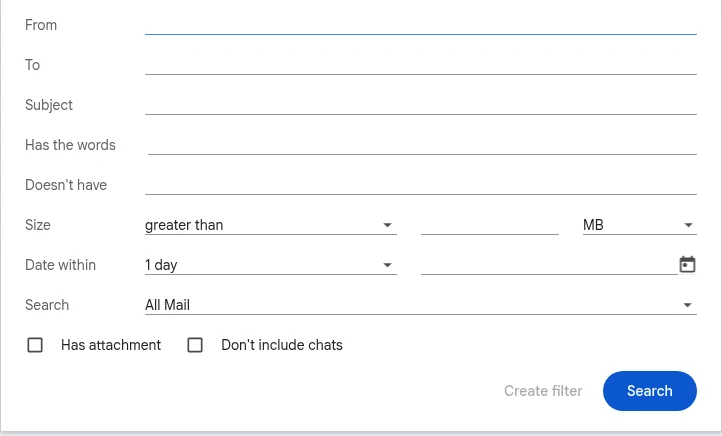
Type medium.com (or whichever sender you want to tame) into the From field, then click “Create filter.” Note this button says create filter, not search – searching first is optional, useful only if you want to preview what matches.
The next screen is where the automation happens. Gmail asks what to do with matching messages, and the options cover everything from archiving to starring to applying a label. For the newsletter example, check “Skip the Inbox (Archive it)” and “Apply the label,” then pick or create your label:
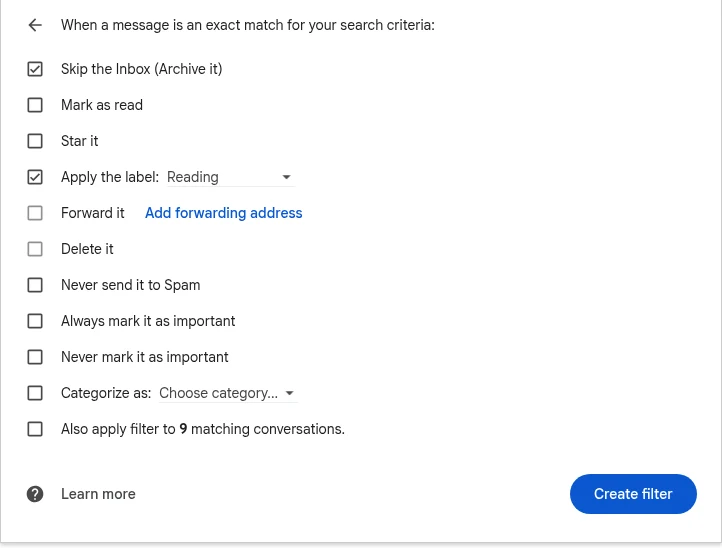
Notice the last option: “Also apply filter to matching conversations.” Leave it unchecked and the filter only touches future mail. Check it and Gmail will retroactively file everything already sitting in your inbox – satisfying, but be sure you mean it.
Click “Create filter” once more and it’s live. You can review, edit, or delete it anytime under Settings, then “Filters and Blocked Addresses,” where every active filter is listed in one place:
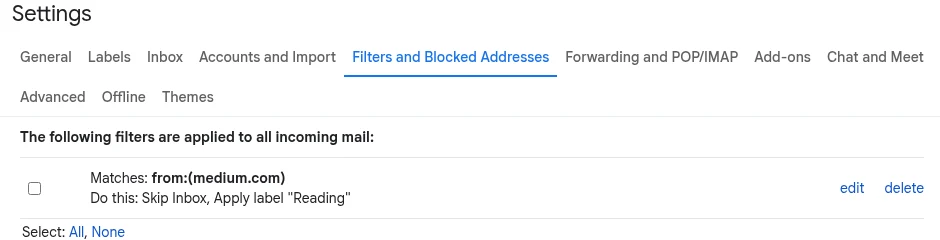
Three filters cover most inboxes: newsletters to a Reading label, receipts and invoices to a Finance label, and anything from your most important people starred or marked important. Google’s official filter documentation lists every criterion and action available, including the fine print – for example, a forwarding filter only forwards messages that arrive after you create it.
Layer 2: Draft and summarize with AI
With sorting handled, AI takes on the writing and reading. Gmail’s Gemini integration offers three features worth knowing:
- Help me write: give it “reply to this asking for the invoice as a PDF” and it drafts the full email in your thread. You edit, then send.
- Thread summaries: long back-and-forth threads get an AI-generated summary at the top, so you catch up in seconds instead of scrolling.
- Suggested replies: short, context-aware response options you can tap and adjust.
Availability is the catch, so check before you plan around these. Google’s Gemini in Gmail help page maintains the current table: AI thread summaries are broadly available to personal Gmail accounts, while “Help me write” on free personal accounts is limited to certain regions – US English at the time of writing – with paid Google One AI Premium and Workspace plans getting wider access. If you don’t see the Gemini icon in your compose window, your account or region doesn’t have it yet, and the web version of Gmail tends to get features before the mobile apps.
Whatever AI you use, treat the output as a first draft, never the final send. AI drafts confidently and occasionally wrong – wrong names, invented commitments, a tone that isn’t yours. Thirty seconds of editing is still minutes saved, and it’s the difference between automation helping your reputation and quietly damaging it. That habit of checking machine output before it represents you matters beyond email too, which is why it’s worth learning to fact-check AI answers as a general skill.
Layer 3: Follow-ups that don’t slip
The third layer is about what happens after you send. Two Gmail habits cover nearly everything:
Snooze instead of flagging. If a message needs action Thursday, snooze it to Thursday morning and let it leave your sight until then. An inbox that only contains what needs attention today stays calm.
The waiting-on rule. Create a filter that applies a “Waiting” label to messages where you can spot follow-ups – or simply label sent messages you’re expecting a reply to. Once a week, open the label and nudge anyone who’s gone quiet. This works beautifully alongside the systems in email marketing for small businesses, where a missed follow-up is often a missed sale.
AI helps here too: when the reply you owe is the hard part, “Help me write” turns “follow up on the proposal I sent last week, politely” into a draft you can send in under a minute.
What about Outlook and other inboxes?
Everything in Layer 1 and Layer 3 exists outside Gmail under different names. Outlook calls filters “rules” and offers the same skip-the-inbox, move-to-folder, and flag actions, plus Copilot drafting on Microsoft 365 plans. Apple Mail has rules under Settings, and Superhuman and Spark build their whole pitch around triage and AI summaries. The concepts transfer one to one: match on sender or subject, file automatically, review AI drafts before sending. If your inbox lives somewhere other than Gmail, find its rules screen and build the same three filters there.
What a morning looks like, before and after
To make this concrete, here’s an invented example. Rani runs a one-person design studio. Before automation, her morning email routine looked like this: 45 unread messages, twenty minutes deleting and filing, ten minutes hunting for two client replies buried under newsletters, then fifteen minutes drafting routine answers. Forty-five minutes, gone, before any real work.
After one afternoon of setup – three filters, a Reading label, and AI drafting on her Workspace plan – the same inbox looks different. Newsletters are already filed. Client mail sits starred at the top. She skims thread summaries instead of full threads and edits AI drafts instead of staring at a blank compose box. Her morning email takes about fifteen minutes.
| Task | Manual routine | With automation |
|---|---|---|
| Sorting 45 messages | ~20 minutes | 0 (filters do it overnight) |
| Finding priority replies | ~10 minutes | ~2 minutes (starred at top) |
| Reading long threads | ~10 minutes | ~3 minutes (AI summaries) |
| Drafting routine replies | ~15 minutes | ~5 minutes (edit, don’t write) |
| Total | ~45-55 minutes | ~10-15 minutes |
These numbers are illustrative – your mileage depends on volume – but the shape is realistic: the savings come from deleting decisions, not from typing faster. Half an hour a day is over a hundred hours a year.
Rules for automating without regrets
Automation earns trust slowly and loses it fast, so set guardrails from day one:
- Never auto-delete. “Skip the Inbox” plus a label is reversible. The “Delete it” action is not. Archive aggressively; delete almost never.
- Keep humans on anything important. Filters can file client mail, but no filter or AI should auto-send to clients, managers, or anyone whose trust you can’t afford to spend.
- Audit monthly. Filters pile up. Once a month, open the Filters settings page and delete any rule you no longer recognize. A forgotten filter archiving something important is the classic automation failure, and it’s silent.
- Review AI drafts every time. Names, numbers, dates, and promises – check all four before any AI-assisted message goes out.
If this kind of setup clicks for you, the natural next step is chaining tools together, like the walkthrough in building your first AI automation workflow, which connects triggers and actions across apps the same way filters connect senders and labels.
Frequently asked questions
Do Gmail filters work on email I’ve already received? Only if you tell them to. The “Also apply filter to matching conversations” checkbox on the actions screen applies the filter retroactively. Without it, the filter only processes messages that arrive after creation. The one exception is forwarding: forwarding filters only ever affect new messages, even with the box checked.
Is Gemini in Gmail free? It depends on the feature, plan, and region. AI thread summaries are available broadly for personal accounts, while “Help me write” on free personal Gmail is region-limited at the time of writing, with wider access through Google One AI Premium and Workspace plans. Google’s help page keeps the current availability table, so check there before counting on a specific feature.
Will filters slow down my inbox or break anything? No. Filters run on Google’s servers as mail arrives, with no noticeable delay, and they don’t change how sending works. The only real risk is a badly scoped criterion – matching more mail than you intended – which is why previewing with Search first is a good habit.
Can I automate replies completely, without reviewing? Gmail itself doesn’t offer full auto-replies from AI, and you shouldn’t want it to. A message sent in your name with an invented fact or a wrong name costs more than the minutes saved. Use AI for drafts and humans for the send button, especially with anyone who pays you.
What should I automate first? Newsletters and notifications, because they’re high-volume and zero-risk. One filter that skips the inbox for mailing lists will remove a third of a typical inbox on day one. Save client-facing automation for after you’ve trusted the system for a few weeks.
The bottom line
Email automation isn’t about ignoring your inbox; it’s about making sure the only things in it are things that deserve you. Filters sort overnight, AI handles the first draft and the long-read summary, and a simple waiting-on habit keeps follow-ups alive. Set it up once this week, audit it monthly, and take your mornings back.




One Comment