
AI Meeting Notes: How to Automate Transcription and Summaries
Someone in every meeting is typing instead of thinking. They’re capturing decisions half-heard, missing the follow-up question while they finish a sentence, and producing notes that nobody – including them – will ever read again.
AI meeting notes kill that job entirely. A transcription tool listens to the meeting, produces a timestamped, speaker-labeled transcript within minutes, and generates a summary you can scan in thirty seconds. Newer tools go further: you can ask the transcript questions afterward, like “what deadline did we agree on?” and get a direct answer.
This guide walks through the full setup using Otter, one of the most popular free options – every screenshot below comes from a real account I created and tested for this article. The workflow transfers to similar tools (Fireflies, Fathom, Notta) with minor differences.
What AI meeting notes actually do
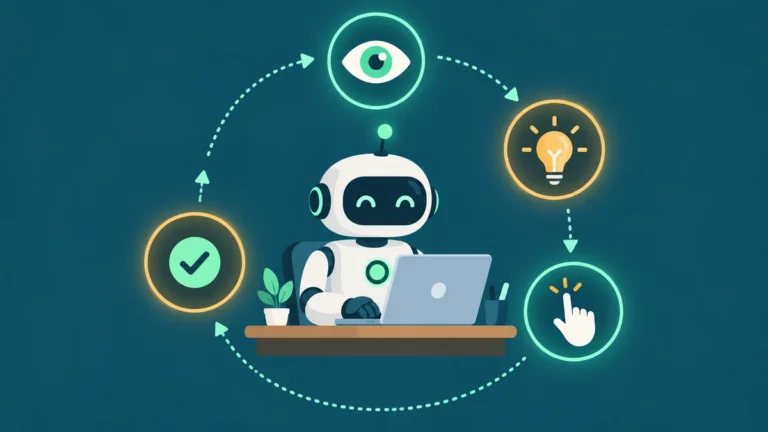
The stack has three layers, and understanding them helps you pick what you need:
1. Transcription. Speech-to-text converts the audio into a written record, usually with timestamps and speaker labels. This is the foundation – everything else is built on it.
2. Summarization. An AI model reads the transcript and produces the useful parts: key points, decisions, action items. This is what replaces the note-taker.
3. Query (AI chat). Instead of reading anything, you ask questions. “What did we decide about the launch date?” “List every action item assigned to me.” The AI answers from the transcript, with the meeting as its only source.
You can adopt these one at a time. Transcription alone already beats handwritten notes. The summary saves the review time. The chat saves you from ever searching a document again.
The free plan math: what you get without paying
Before setting anything up, know the limits. On Otter’s free Basic plan (verified on the official help pages and in the live account while writing this):
- 300 transcription minutes per month – about ten 30-minute meetings
- 30 minutes per conversation – longer recordings get cut off at the half-hour mark
- 3 lifetime audio/video file imports – uploading pre-recorded files is a limited commodity on the free tier; the import dialog shows “2 of 3 imports left” after your first one
- 18 languages supported for transcription
Three hundred minutes covers a light meeting schedule comfortably. If you’re in meetings two or more hours a day, you’ll hit the cap in week two and need a paid plan – that upgrade decision follows the same logic as any free vs paid software choice.
Step 1: Create the account (5 minutes)
Sign up at otter.ai with a Google or Microsoft account, or plain email. During onboarding, Otter asks for calendar access so its Notetaker bot can auto-join your scheduled meetings.
Two settings to check during setup – both matter for privacy:
When Otter joins. Options range from “all meetings” to “meetings I manually select.” If you don’t want a bot appearing in every call on your calendar, choose manual. You can always invite it per-meeting later.
Who sees the notes. Set sharing to “Don’t share – keep meeting notes private” unless you specifically want automatic distribution to attendees. Auto-sharing transcripts of a sensitive call to everyone on the invite is a mistake you make exactly once.
You can skip calendar connection entirely and still use everything in this guide – recording, importing, transcripts, summaries, and AI chat all work without it.
Step 2: Get audio into the tool (5 minutes)
Three ways in, depending on your situation:
Import a recording. The fastest way to test. Click Import, drag in an audio or video file (MP3, MP4, WAV, and similar), pick the language, and wait. For this article I imported a 100-second public-domain speech recording; the dialog showed an estimated one minute of processing and it finished on schedule. Remember the free-plan limit: three lifetime imports.
Record live in the app. The Record button captures audio through your device microphone – useful for in-person meetings, interviews, or dictating notes to yourself.
Let the bot join an online meeting. With a calendar connected, Otter’s Notetaker joins Zoom, Google Meet, or Teams calls as a participant and records in real time. This is the fully automatic path: zero clicks once configured. It’s also the most visible one – everyone in the call sees the bot, and you should tell attendees it’s recording. Consent rules for recording vary by jurisdiction; when in doubt, announce it.
Step 3: Read and correct the transcript (10 minutes)
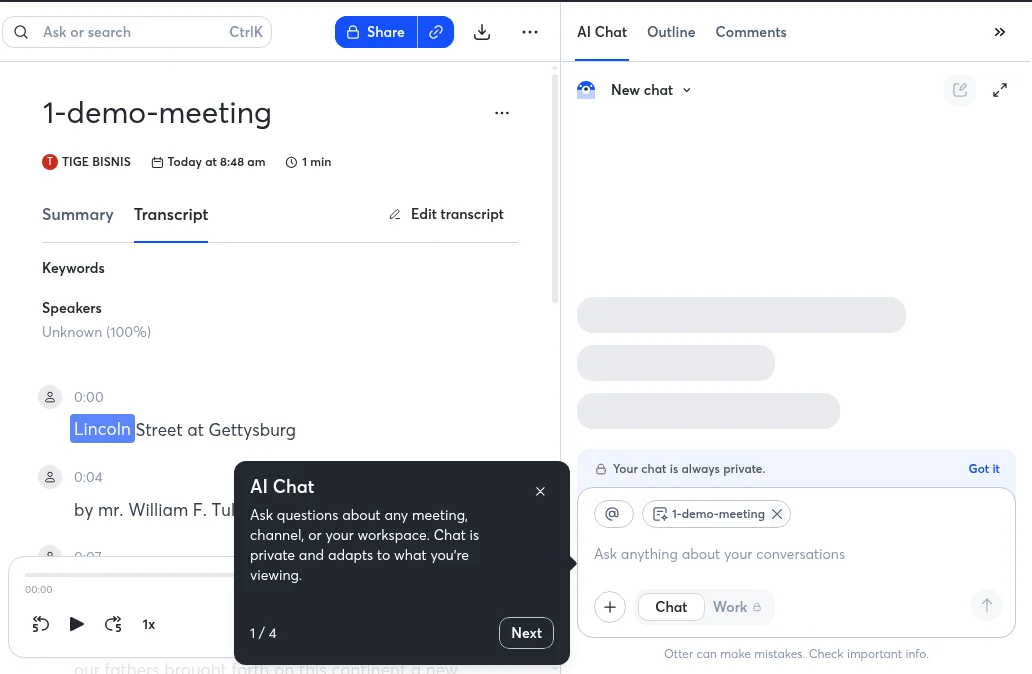
Within a minute or two of import, you get the full transcript: timestamps on every segment, speaker labels, a keywords section, and a synchronized playback bar. Click any word and the audio jumps to that moment – this alone changes how you review meetings.
Accuracy on my test recording was good but imperfect: the tool rendered “Four score and seven years ago” as “Four and seven years ago,” and mis-heard a name. That’s typical for any transcription tool, especially with accents, crosstalk, or poor microphones. Two habits handle it:
- Fix critical segments with Edit transcript. Names, numbers, dates, and commitments are worth correcting; filler is not.
- Label speakers when the tool guesses wrong. It improves future transcripts from the same voices.
Step 4: Generate the summary (automatic)
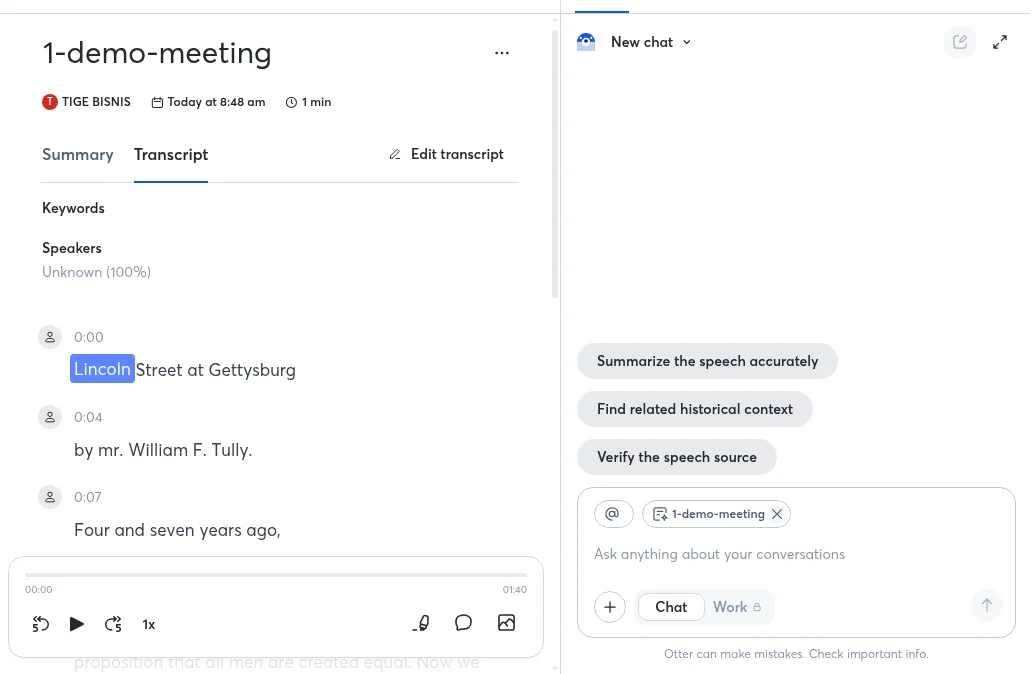
The Summary tab generates an AI overview automatically after transcription, with templates (the default is “General”) that shape the output. For short meetings the summary is a paragraph; longer ones get structured sections with action items.
Treat the summary as a draft, not gospel. AI summaries occasionally misattribute a decision or smooth over a disagreement that mattered. Spend your saved note-taking time on a thirty-second scan of the summary against your memory of the meeting – that’s the quality-control step that makes the whole system trustworthy.
Step 5: Ask the meeting questions (the fun part)
The AI Chat panel is where this stops being a transcription tool and becomes a memory system. You ask questions in plain language; it answers from the transcript.
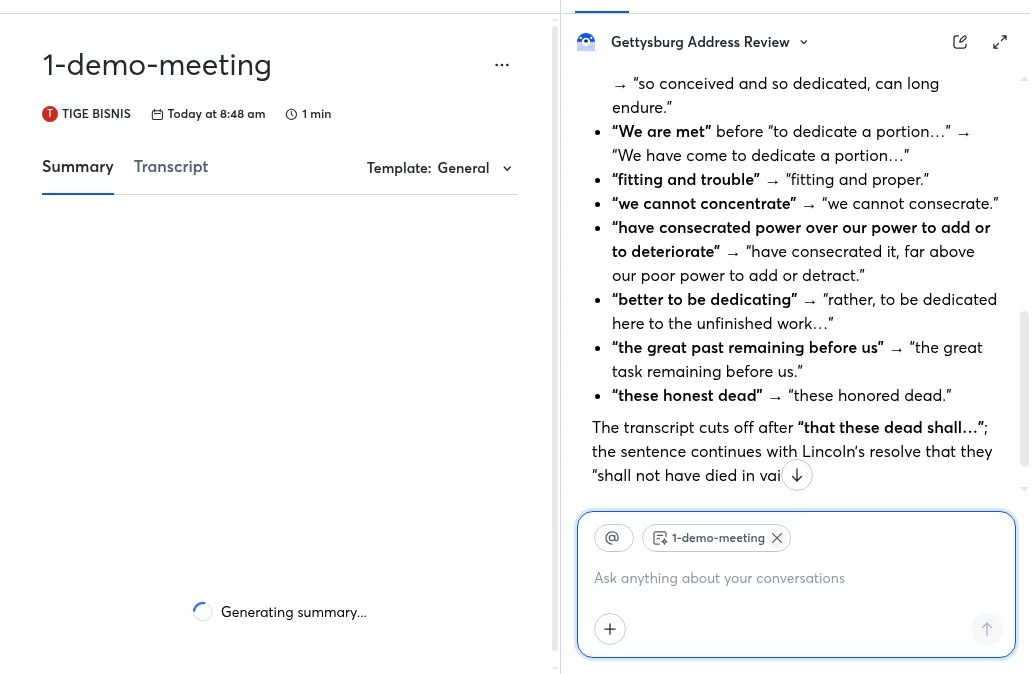
In my test, I asked it to review the imported speech. It caught the transcription errors itself – flagging that “Four and seven years ago” should be “Four score and seven years ago” and identifying the speech as the Gettysburg Address despite the mangled title. For a real meeting, the useful prompts look like:
- “Summarize this meeting in five bullet points”
- “List every action item and who owns it”
- “What did we decide about [topic]?”
- “What questions were left unresolved?”
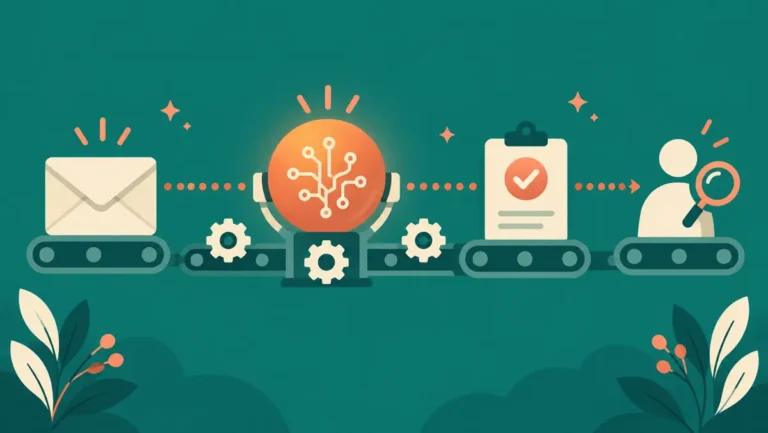
This is the same pattern as other AI automation for beginners workflows: a trigger (meeting happens), an automated capture step, and an AI step that turns raw material into something useful.
Step 6: Get the notes where they need to go
Notes that live only inside the transcription tool die there. Otter lets you copy or export the transcript and summary, or share a link to the conversation. A simple routine that works:
- After each meeting, copy the summary and action items.
- Paste them into wherever your tasks live – your notes app, project board, or a message to the team.
- Link back to the full transcript for anyone who wants the detail.
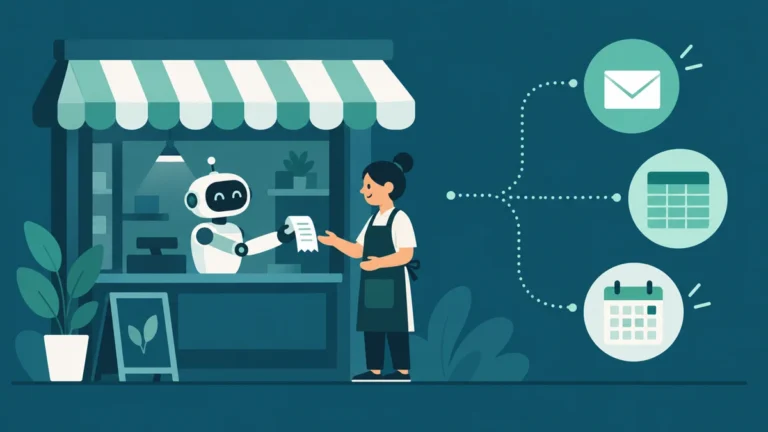
If you want this fully automated – summary emailed to you, action items pushed into a task list – that’s a job for an automation platform. Our first AI automation workflow tutorial builds exactly that kind of pipeline, and the Zapier vs Make vs n8n comparison helps you pick the tool for it.
Your 30-minute setup checklist
| Step | Time | Done when |
|---|---|---|
| Create account, set join and sharing preferences | 5 min | Bot joins only meetings you pick; notes stay private |
| Import or record a first test | 5 min | A real transcript appears with timestamps |
| Correct names and key numbers | 10 min | Critical segments read correctly |
| Review the AI summary | 5 min | Summary matches your memory of the meeting |
| Ask the AI chat three questions | 5 min | Answers check out against the transcript |
Total: 30 minutes, and every meeting after this one is captured automatically.
Common mistakes to avoid
Recording without telling people. Beyond being rude, recording consent laws vary – some places require every party to agree. Announce the bot or the recording at the start of the call.
Trusting the summary blindly. AI summaries misread sarcasm, miss context, and occasionally invent clean resolutions to messy discussions. Skim against the transcript for anything consequential.
Letting transcripts pile up unreviewed. An unreviewed transcript is the same as no notes. The two-minute review is the workflow; the AI just removes the typing.
Importing everything on the free plan. With three lifetime file imports on Otter Basic, save them for recordings you genuinely can’t capture live. Use Record or the meeting bot for everything else.
Frequently asked questions
Are AI meeting notes accurate enough to rely on?
For clear audio with one speaker at a time, modern tools hit high accuracy – good enough that you correct a few names and numbers rather than retyping anything. Accuracy drops with heavy accents, overlapping speech, and bad microphones. Always fix names, dates, and commitments manually before sharing.
Is it legal to record meetings with an AI bot?
It depends on your jurisdiction. Some regions allow recording with one party’s consent (yours); others require everyone’s consent. The safe default everywhere: tell attendees the meeting is being recorded and transcribed before you start. Most tools display the bot visibly in the participant list, but visible is not the same as consented.
How many free transcription minutes do I actually need?
Track a normal week. Add up meeting length you attend. If it’s under about 60 minutes a day, Otter’s 300 free monthly minutes (capped at 30 minutes per conversation) covers you. Two-plus hours of daily meetings means you’ll want a paid plan within two weeks.
Can AI meeting notes work for in-person meetings?
Yes – use the app’s Record function with your phone or laptop on the table. A cheap external microphone helps a lot in larger rooms. Speaker identification is less reliable in person than in online calls, where each voice comes through a separate channel.
What’s the difference between a transcript and a summary?
The transcript is everything that was said, word for word, with timestamps – your searchable record. The summary is the AI’s distillation: key points, decisions, and action items. You review the summary, but you trust the transcript. When they disagree, the transcript wins.
Can I use AI meeting notes for job interviews or lectures?
Interviews: yes, with the other person’s consent – they’re excellent for this, since you can focus on the conversation instead of scribbling. Lectures and talks: generally yes, and the import function handles recordings you made with a separate device. Just watch the free plan’s 30-minute per-conversation cap and import limits.
Sources
- Otter.ai pricing – Basic (free) plan limits
- Otter Help Center – plan and import limits
- Hands-on testing: free Otter Basic account created for this article, demo audio imported and transcribed on November 7, 2026 (screenshots above)
The bottom line
Automating meeting notes is one of the highest-return automations you can set up: ten minutes of configuration, and you never split your attention between listening and typing again. Start with the free tier, import or record one real meeting this week, and run the full loop – transcript, summary, one AI chat question. If you want to build more on top of it, the natural next step is connecting it to the rest of your stack, which our AI automation guide covers end to end.


One Comment