
How to Build Your First AI Automation Workflow (Step by Step)

In this guide
An AI automation workflow sounds like something you need a developer for. You do not. By the end of this tutorial you will have a working one: a three-step automation that watches a blog’s RSS feed, asks an AI to summarize each new post, and emails you the digest. We built the exact workflow shown here while writing this article, and every screenshot below is from that real build.
The whole thing takes about 30 minutes in Zapier, needs no code, and costs nothing to try. Along the way you will learn the pattern behind nearly every AI automation, so the next workflow you build will be your own idea.
What an AI automation workflow actually is
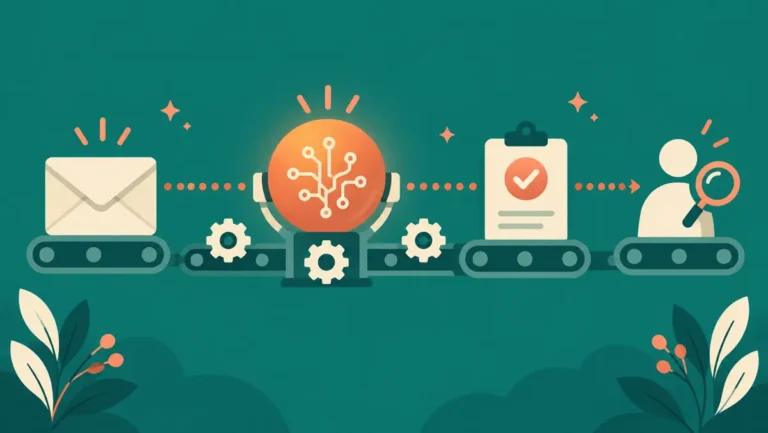
Strip away the buzzwords and an AI automation workflow is three parts: a trigger that notices something happened, an AI step that does something with it (summarize, classify, draft, extract), and an action that puts the result somewhere useful. The AI sits in the middle as one step in a chain, not as a chatbot you talk to.
That is the key mental shift. You are not prompting an AI once. You are wiring it into a pipe that runs by itself, so the hundredth run costs you zero attention. Our complete guide to AI automation covers the wider pattern, from simple two-step chains to agent-style setups; this tutorial builds your first working link in that chain.
Pick a first workflow worth building
A good first workflow has four properties. It runs on public or low-risk data, so a mistake cannot email your boss something embarrassing. It saves you a recurring chore, so you actually care whether it works. It finishes in under an hour, so you finish it today. And its output is easy to check, so you can tell at a glance whether the AI did its job.
The blog digest we build here ticks all four: the input is a public RSS feed, the output lands in your own inbox, and you will know within one test run whether it works. Other strong first candidates:
- Watch a competitor’s blog and email yourself a summary of each new post.
- Take new form responses and have the AI label each as sales, support, or spam before it hits a spreadsheet.
- Turn a daily weather or calendar trigger into a two-line AI-written morning brief.
Start with one. A workflow you finish beats five you sketch.
Build your first AI automation workflow in Zapier
We use Zapier because its free trial includes the AI step and its editor is the friendliest for a first build. The same trigger-to-AI-to-action shape exists in Make and n8n, and our comparison of Zapier, Make, and n8n helps if you want to weigh them before committing. Sign up at zapier.com with any email; no card is needed for the trial.
Step 1: set the trigger
Create a new Zap and choose RSS by Zapier as the trigger app with the event New Item in Feed. Paste any blog feed URL (every WordPress site exposes one at /feed/) and leave the username and password fields empty for a public feed. Zapier’s trigger test pulls a real recent post, which becomes the sample data for everything downstream.

Step 2: add the AI step
Add a second step and choose AI by Zapier. The prompt below is the one from our build, and it produces a tidy three-bullet digest with a one-line takeaway:
Summarize this blog post in 3 short bullet points for a busy reader, then add one line on why it matters. Keep the whole summary under 120 words. Post title: [Title]. Post text: [Description].
The two bracketed fields are not typed as text. Click into the prompt, press the / key or the + button, and insert the Title and Description fields from the trigger step. Those pills are what make each run summarize that run’s post instead of a fixed example. Zapier rates the prompt strength as you write; a clear length limit and a clear format are what pushed ours to “Strong.”

Run the step’s test and read the output. Ours came back at 74 words with clean bullets and a sensible why-it-matters line. If yours rambles, tighten the word cap; if it misses the point, add one sentence about who the reader is.

Step 3: send the email
Add a final step, choose Gmail with the event Send Email, and connect your Google account. The permission screen lists exactly what Zapier can do; you can leave optional scopes unchecked. Set the To address to your own inbox, give the subject a prefix like “New post:” followed by the Title pill, and build the body from the AI step’s output: the summary bullets, the why-it-matters line, and a “Read the full post:” line ending with the Link pill from the trigger.

One editor quirk worth knowing: after you insert a pill, the cursor jumps back to the start of the field. Click at the spot where you want the next pill before inserting it, or your text and pills end up scrambled. The Undo button at the top cleanly reverts the last edit if that happens.
Write prompts the automation can rely on
An AI step that runs unattended needs a stricter prompt than a chat conversation, because nobody is there to say “try again.” Three rules carry most of the weight.
First, cap the output. “Under 120 words” gives the model a hard target and keeps your digest readable on a phone. Without a cap, summaries drift long as posts get longer. Second, name the audience. “For a busy reader” changes what the model keeps and what it drops. Third, ask for a fixed shape: the same number of bullets every time, the takeaway line last. A consistent shape means you can scan ten digests in a minute, and it makes bad runs obvious at a glance, which is exactly what you want from an unattended system.
Keep the prompt in the Zap, not in your head. When you tweak it, change one sentence and re-test rather than rewriting the whole thing, so you know which change did the work.
What this costs on the free plan
Here is the honest part, because pricing pages bury it. Zapier’s free plan allows unlimited Zaps but limits you to two-step Zaps (one trigger, one action), 100 tasks per month, and 15-minute polling. The three-step workflow we just built uses a multi-step Zap and the AI step, which are paid-tier features. New accounts get a 14-day trial that unlocks them; after the trial, this exact Zap pauses unless you upgrade.
You have three good options when the trial ends:
| Option | What changes | Cost |
|---|---|---|
| Drop the AI step | Two-step Zap: RSS trigger sends the post title and link straight to Gmail. No summary, still useful | Free, within the 100-task monthly limit |
| Upgrade Zapier | Keep the full three-step workflow and add more | Paid plan, check current pricing |
| Move to Make or n8n | Same pattern on a platform with different free limits; n8n self-hosted is free with more setup work | Free tiers vary |
For a one-person business weighing those trade-offs, our Zapier vs Make vs n8n comparison for solo operators goes deeper. None of this changes what you learned: the trigger-AI-action pattern transfers to any of these tools.
Test it, then let it run
Before publishing, run the final step’s test. It sends a real email, which is exactly what you want: open your inbox and read the digest as a recipient would. Check that the summary reads well, the why-it-matters line earns its place, and the link works.

Name the Zap something you will recognize in six months (ours is “AI blog digest”) and hit Publish. From here it polls the feed on its own and emails you when something new appears.

Where to go from here
Once the digest has run for a week, you will start seeing the next five workflows you want. That instinct is the real skill: noticing a repeated chore and asking whether a trigger, an AI step, and an action could absorb it. If you want the bigger map of what is possible, our beginner’s guide to AI automation walks through more patterns that need no code.
A practical next step is a workflow that touches your own work rather than a blog feed: sort incoming form responses, draft first replies to common questions, or log expenses from receipt photos. Build each one the same way you built this one, small and testable, and let it earn your trust before you wire it into anything customer-facing.
Quick answers
Do I need to know how to code to build an AI automation workflow?
No. Tools like Zapier, Make, and n8n are built around picking apps and filling in fields. The skill that matters is describing the job clearly: what event starts it, what the AI should produce, and where the result goes.
Is Zapier’s AI step free?
It is included during the 14-day trial for new accounts. After that, AI steps and multi-step Zaps require a paid plan. The free tier still covers unlimited two-step Zaps within 100 tasks a month, which is enough for many simple automations.
What is the difference between a workflow like this and an AI agent?
A workflow follows the fixed path you designed, step by step, every time. An agent decides its own next steps toward a goal. Workflows are predictable and cheap to trust; agents are flexible but need tighter supervision. Begin with workflows.
Can I use this with a private or paid feed?
Yes. The RSS trigger accepts a username and password for protected feeds, and Zapier connects to hundreds of apps directly, so the trigger does not have to be RSS at all. A new row in a spreadsheet or a new form submission works the same way.
What happens if the AI writes a bad summary?
Nothing breaks: you get a mediocre email. That is why a first workflow should output to you, not to customers. Tighten the prompt with a shorter length cap and a clearer description of the reader, then re-test. Move automation output in front of other people only after weeks of runs you are happy with.
Sources
- Zapier help center (free plan limits: two-step Zaps, 100 tasks per month, polling interval; AI by Zapier usage)
- Zapier pricing (trial length and paid plan tiers)





2 Comments